Business profile
Set your business name, logo, address, the text on printed tickets, and where visitors are called to. The preview shows the result before you save.
Updated 1 min read
- 1
Open Settings, then Business Profile
Press the gear icon at the top right of the dashboard. The Logo is saved as soon as it is uploaded (PNG, JPEG, or WebP; large images are shrunk for you). Business name, Address, and Ticket text are saved together with the Save button in the bar at the bottom, which shows when something has changed. Cancel puts everything back. The preview on the right shows the result on the visitors' page and the printed ticket.
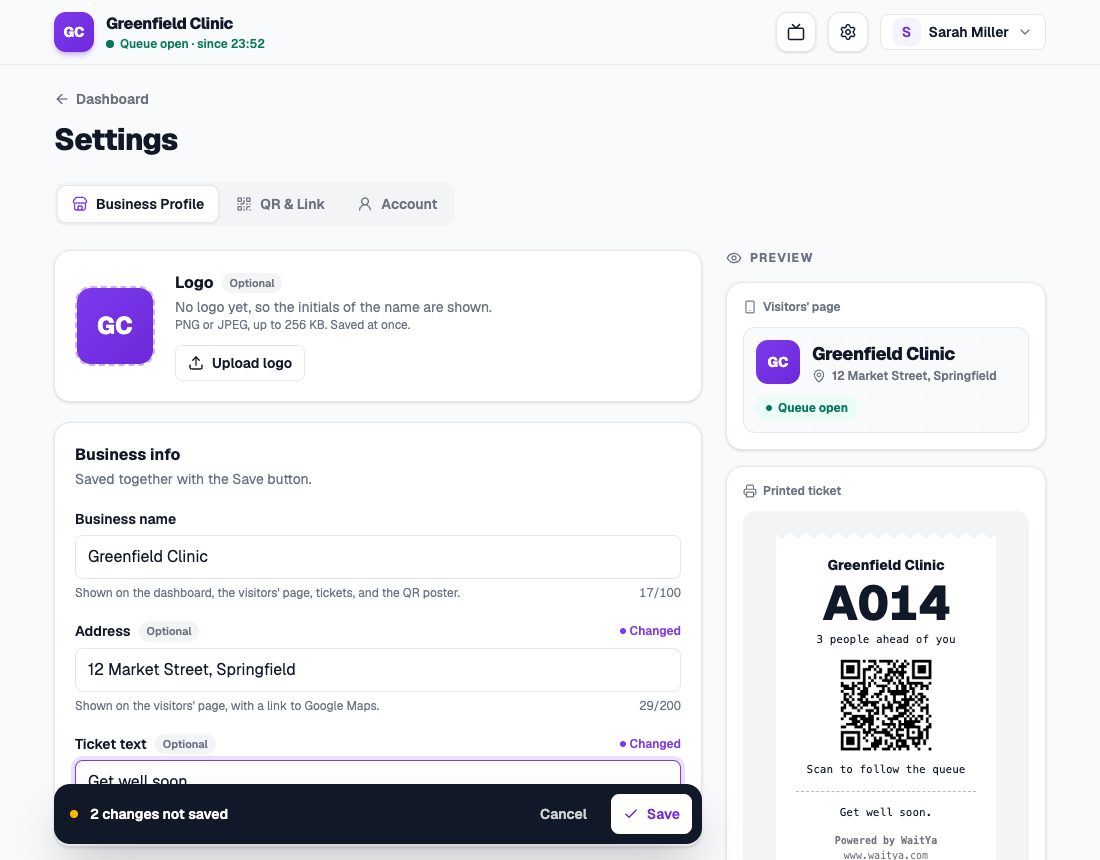
The Business Profile with two unsaved changes and a preview of the visitors' page and the printed ticket. - 2
Choose the call destination
In the Call destination card, choose where visitors are asked to go, such as Table, Room, Chair, Counter, or Technician, or type your own under Other. This word is used in the call dialog, on visitors' phones, on the TV display, and in its voice.
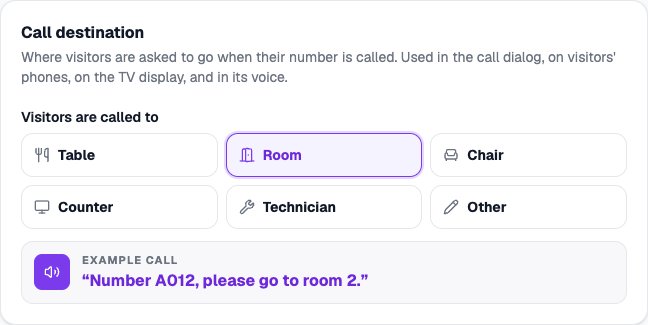
The Call destination card with Room chosen and a sample of the spoken call.
Visitors’ language
Under Visitors’ language, choose whether visitors see Indonesian or English on the queue page, their ticket, the TV display, and the QR poster. Your business name, address, and ticket text stay as you wrote them. Your own dashboard keeps the language of your account.
What shows where
- Business name: the dashboard, the visitors’ page, tickets, the QR poster, and the TV display.
- Logo: the dashboard and the visitors’ page. Without a logo, the initials of the name are shown.
- Address: the visitors’ page, under the name, with a link to Google Maps. Leave it empty if you don’t want it shown.
- Ticket text: a line at the bottom of the paper ticket, such as a thank-you.