Viewing history and closing the queue
See today's served, skipped, and cancelled numbers, put back any mistakes, then close the queue at the end of the day.
Updated 1 min read
- 1
Open Today's history
Press Today's history at the bottom of the dashboard. Choose the Skipped, Served, or Cancelled tab. A skipped number has Call, Put back in the queue, and Cancel number. A number served or cancelled by mistake can be put back in the queue.
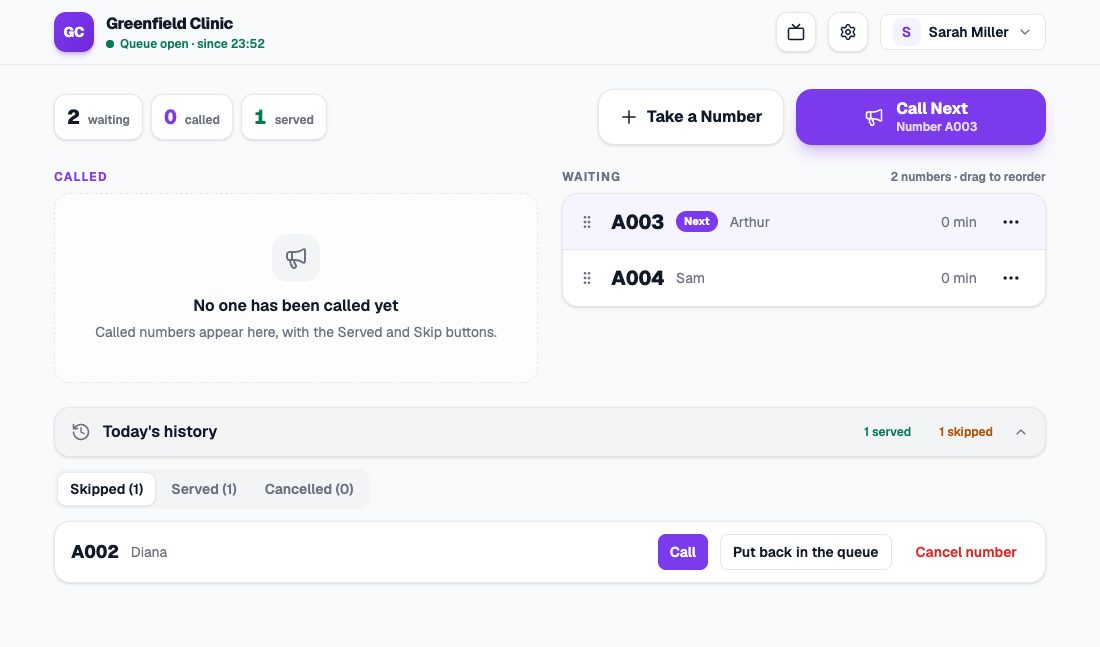
Today's history open on the Skipped tab, with the Call, Put back in the queue, and Cancel number buttons. - 2
Close the queue at the end of the day
Open the account menu at the top right, then choose Close Queue. The confirmation says how many numbers are still active, meaning waiting, called, or skipped. Those numbers are cancelled when the queue closes.
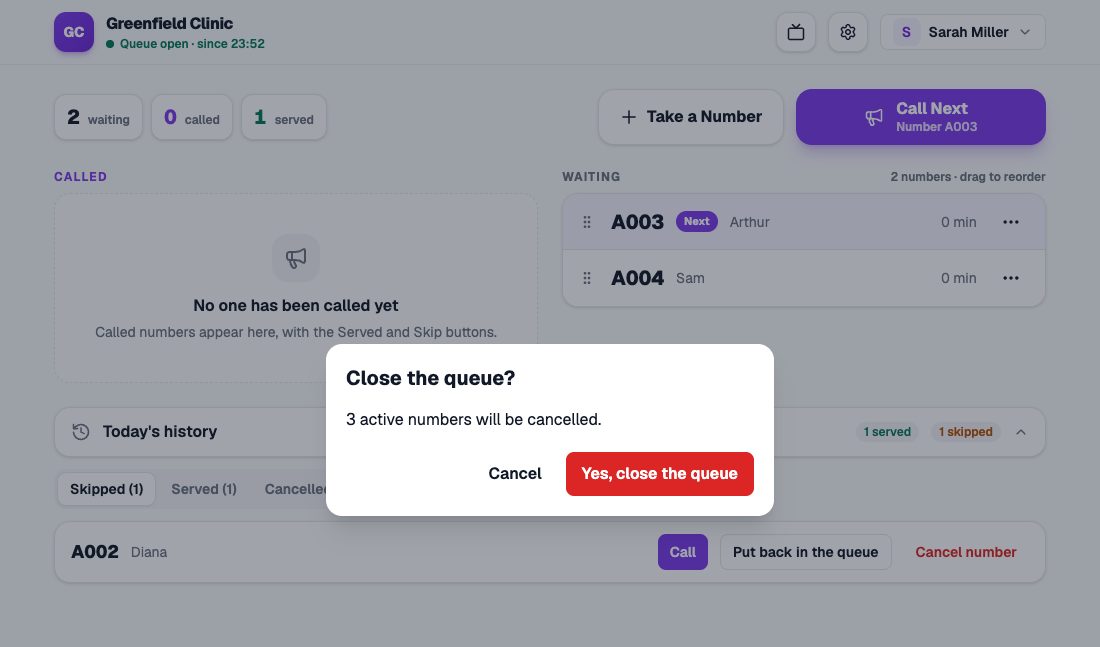
The Close queue confirmation, with how many numbers will be cancelled.
Forgot to close the queue?
The queue closes by itself after 24 hours. When it opens again, numbers start from A001.
Visitor data
Visitor names are deleted 30 days after the queue closes. The visitor count, without names, is kept for statistics.