Setting up a TV display and turning on sound
Show called numbers on a TV, with a voice announcement. Just open an address in the TV's browser and enter a 6-character code.
Updated 1 min read
Before you start
A TV that can open a browser, such as a smart TV, or a regular TV connected to a laptop.
- 1
Press the TV display icon on the dashboard
The TV icon is at the top right of the dashboard. The Set up a TV display dialog shows the address to open on the TV and a 6-character code, or a direct link if that is easier to send to the TV.
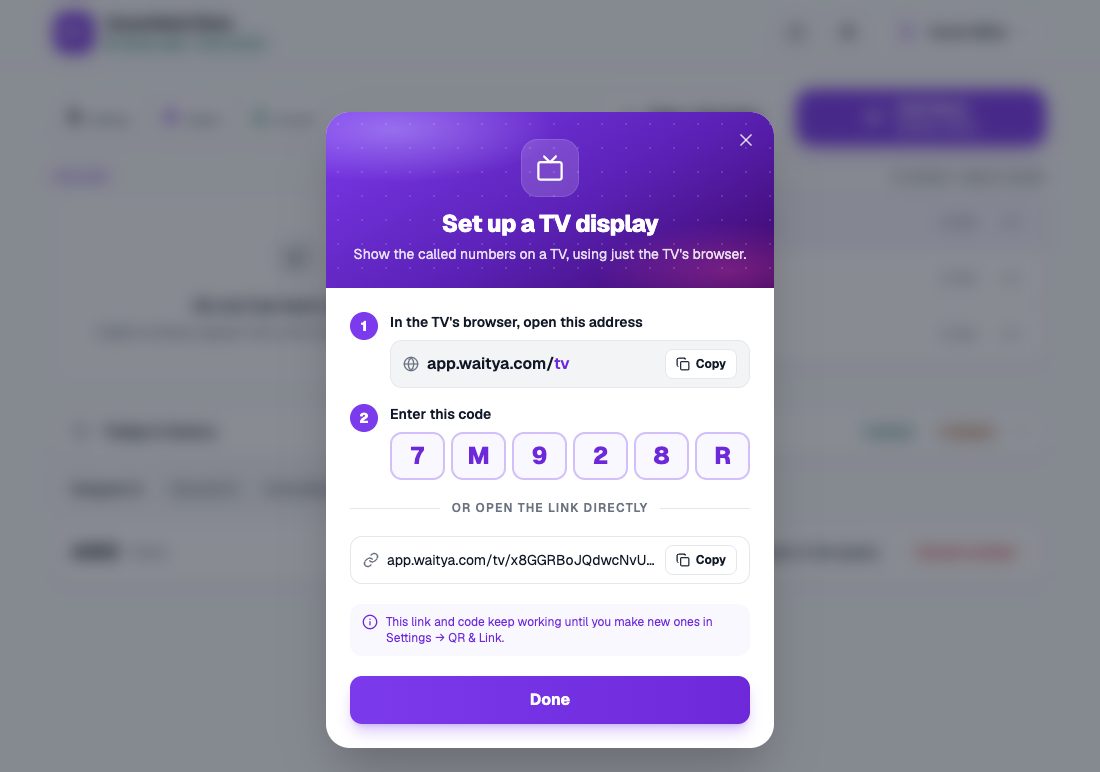
The Set up a TV display dialog with the address app.waitya.com/tv and a 6-character code. - 2
In the TV's browser, open the address and enter the code
Open app.waitya.com/tv in the TV's browser, type the code, then press Connect. Capital and small letters are the same.
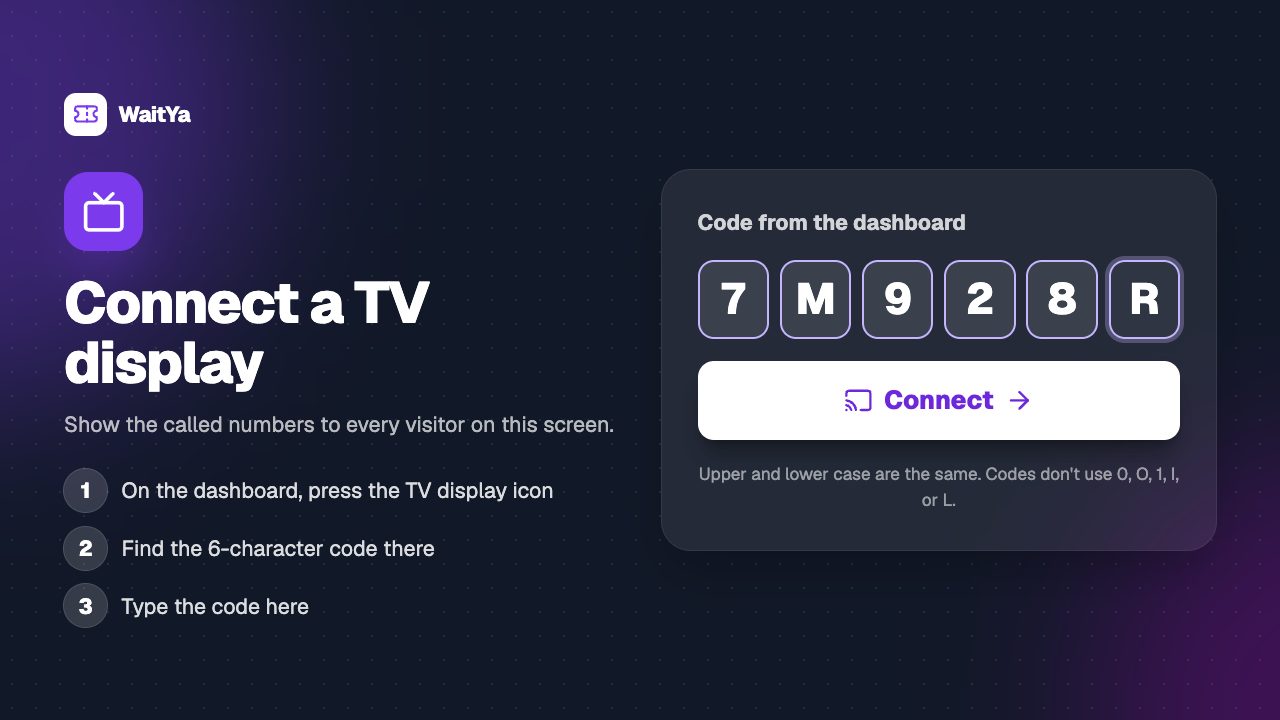
The Connect a TV display page in the TV's browser, with the code box. - 3
Turn on sound by pressing any button
Browsers only allow sound after a button is pressed. Press any button on the remote, or Turn On Sound. The screen also goes full screen and stays on. The board shows the called number, the next numbers, and a QR for visitors.
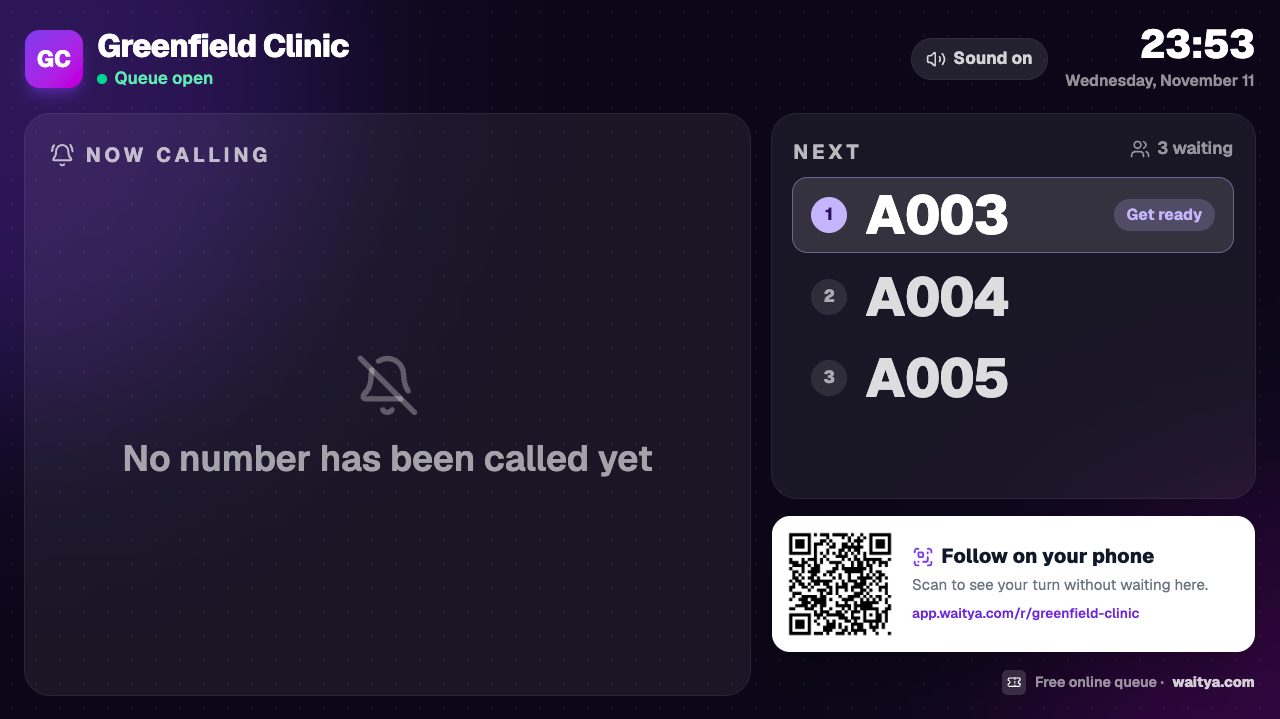
The TV board with the next numbers, a QR for visitors, and the Sound on status. - 4
Every call is announced
When you call, the number and destination fill the TV screen and are read aloud, such as "Number A003, please go to room 1." Calls are announced one at a time.
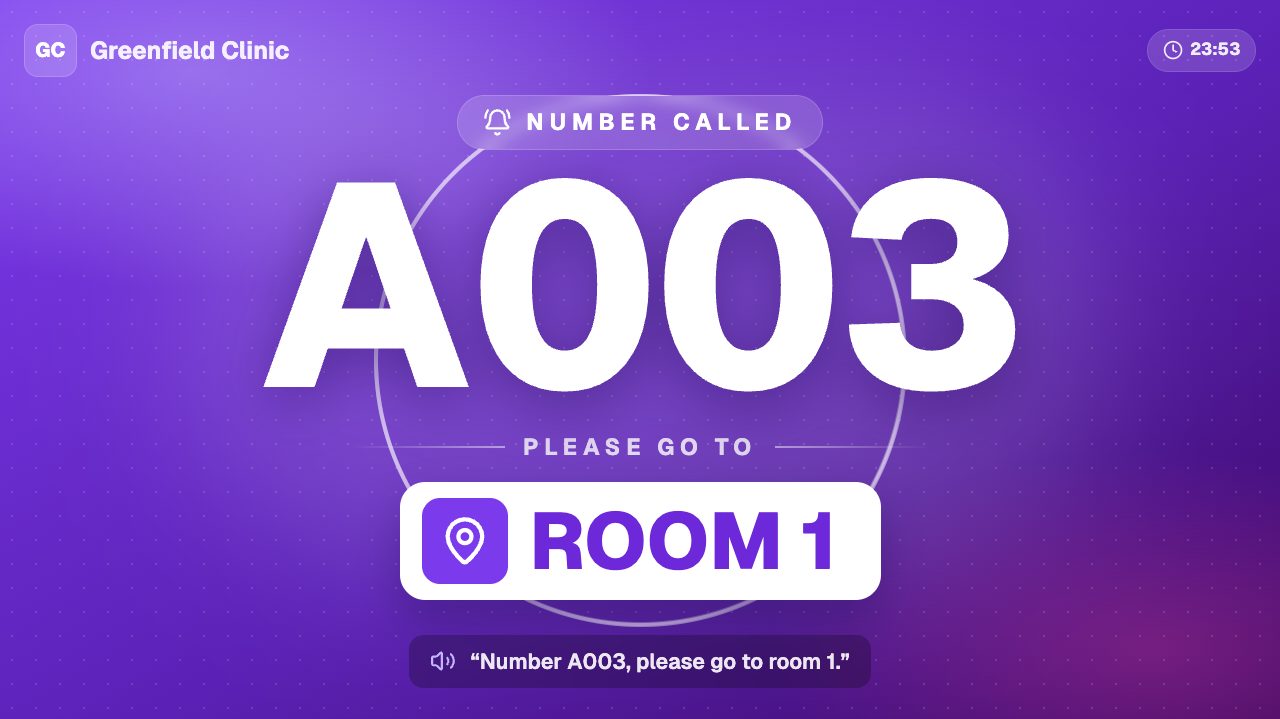
The TV display calling A003 to Room 1, with the announcement text.
No sound?
- Check that the status at the top right of the board says Sound on. If not, press any button on the remote.
- Check the TV’s volume.
- If it says Sound not available, the TV’s browser has no voice for the visitors’ language. The chime still plays, and the number still shows on screen.
Replacing TV access
The TV link and code keep working until you make new ones in Settings → QR & Link. Make new ones when an old TV is no longer used, so it stops showing the queue.