Reordering and editing numbers
Drag a number to change the queue order, or change its name, party size, and destination from the menu on its row.
Updated 1 min read
Before you start
A number is waiting. See Taking numbers and printing tickets.
- 1
Drag to reorder
On a computer, drag the ⋮⋮ handle on the left of the row to its new place. On phones and tablets, press ⋯ on the row, then choose Move up or Move down. Visitors see the new order on their phones at once.
- 2
Open the number's menu
Press ⋯ on the row. The menu has Call, Show QR, Print, Edit details, and Cancel number.
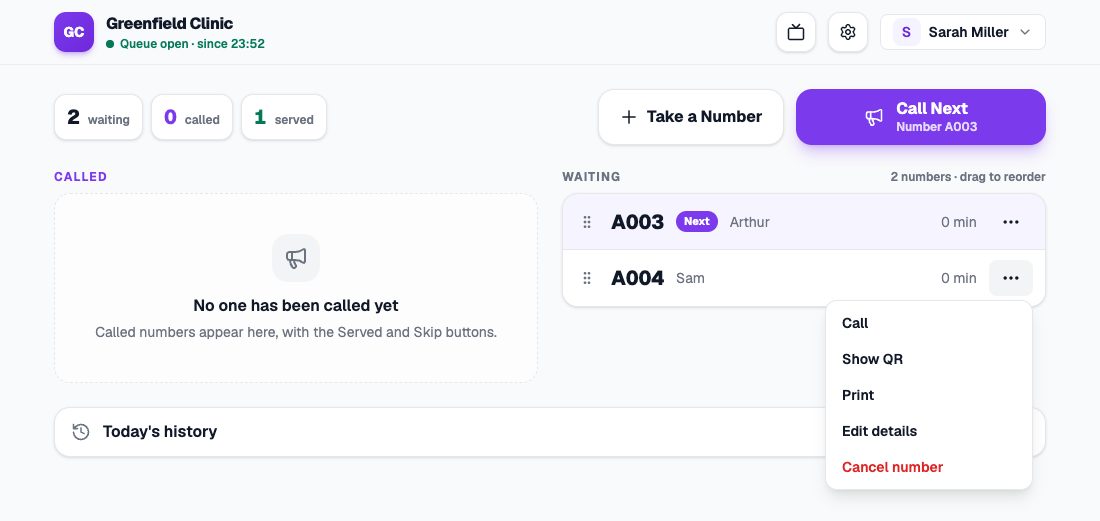
The menu for number A004 with Call, Show QR, Print, Edit details, and Cancel number. - 3
Edit the details, then save
Choose Edit details to change the name, party size, or destination, then press Save. A destination set here is used when that number is called.
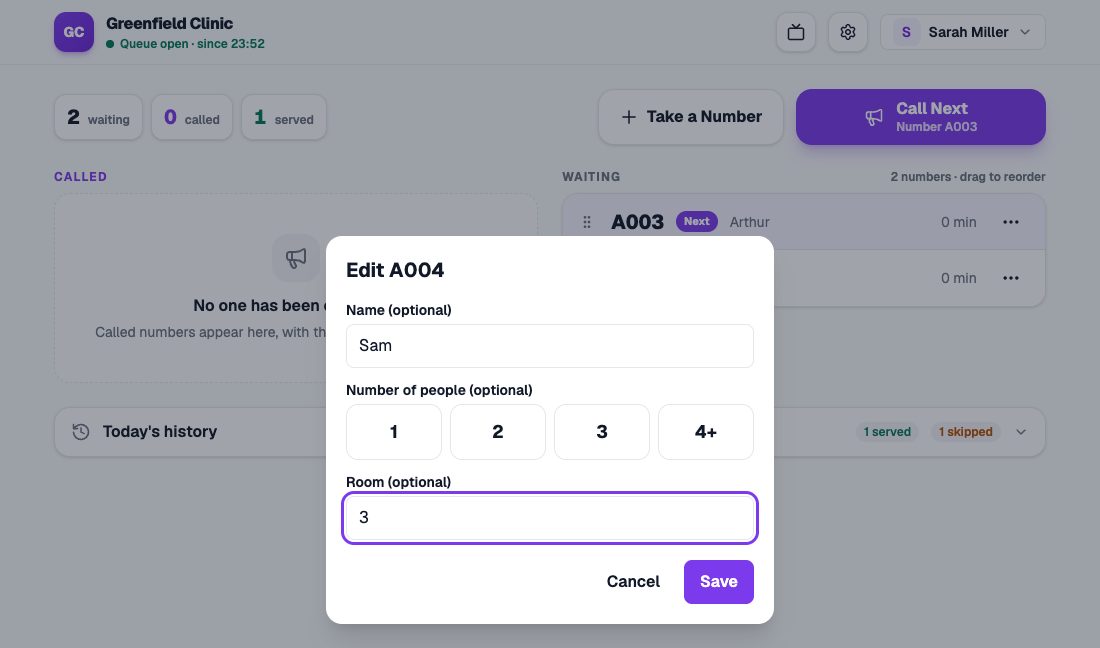
The Edit details dialog for A004 with name, party size, and destination.
Visitor without a phone?
Choose Show QR so they can scan it with a friend’s phone, or Print to print their ticket again.